Please install and activate the eSIM provided for this test.
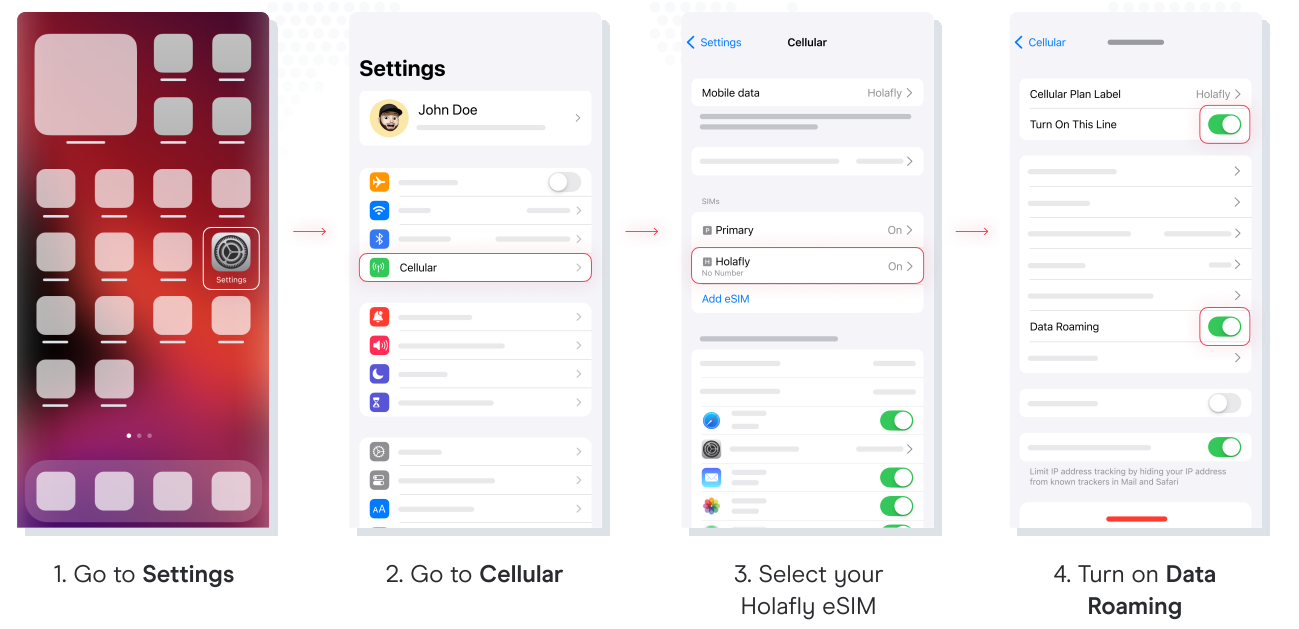
iOS: Settings → Cellular → Add eSIM → scan QR code. Turn On This Line and turn Data Roaming ON.
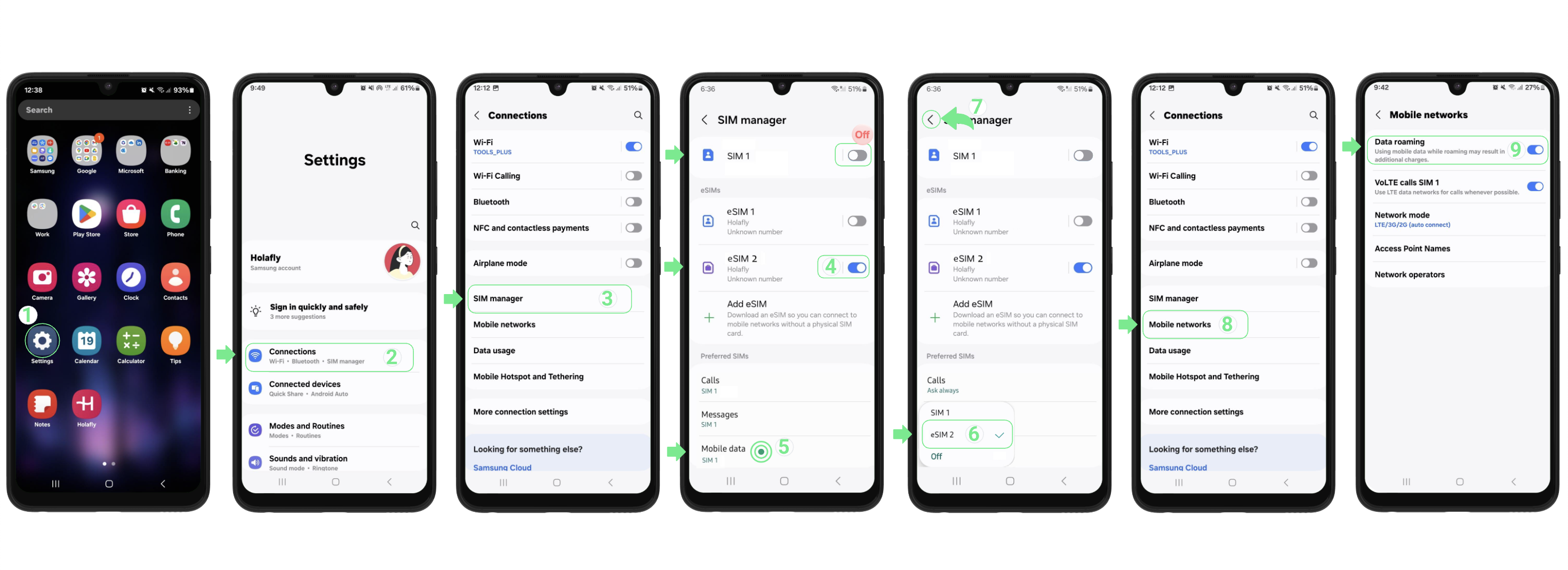
Android: Settings → Connections → SIM manager → Add eSIM → scan QR code. Turn the eSIM ON, set Mobile data to the eSIM, and turn Data Roaming ON.
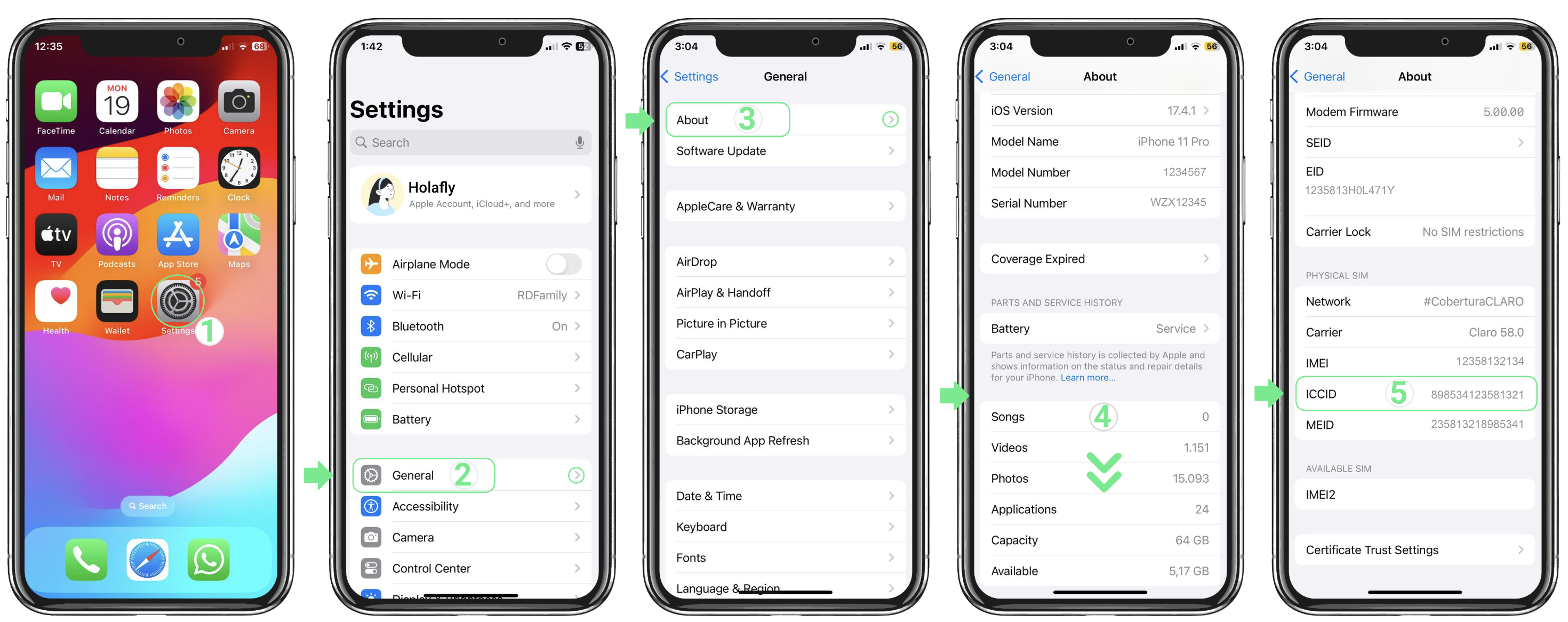
Please upload a screenshot showing the ICCID number of the eSIM.*
iOS: Settings → General → About → scroll down to ICCID.
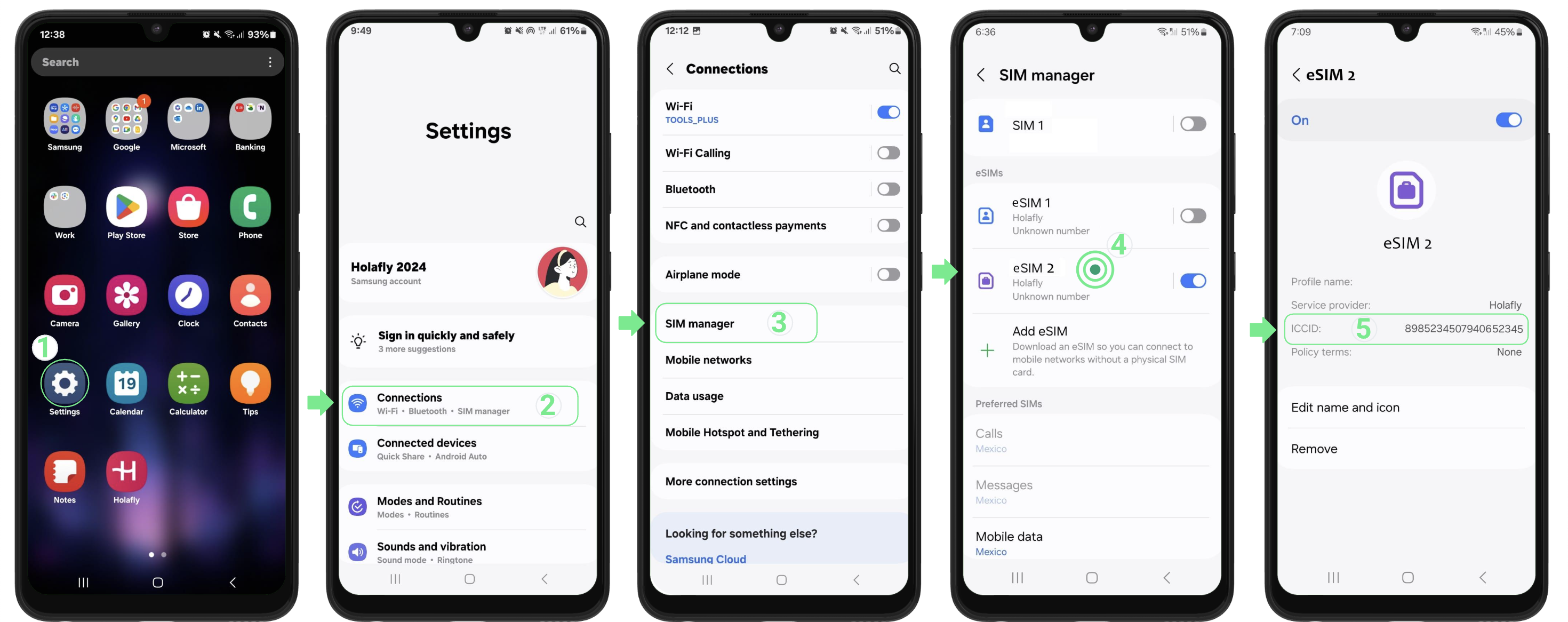
Android: Settings → Connections → SIM manager → tap the Holafly eSIM → screenshot the ICCID.
SPEED TEST
- 1- Turn Wi-Fi OFF.
- 2- Turn personal SIM mobile data OFF (or disable the personal SIM).
- 3- Keep only the eSIM active for data.
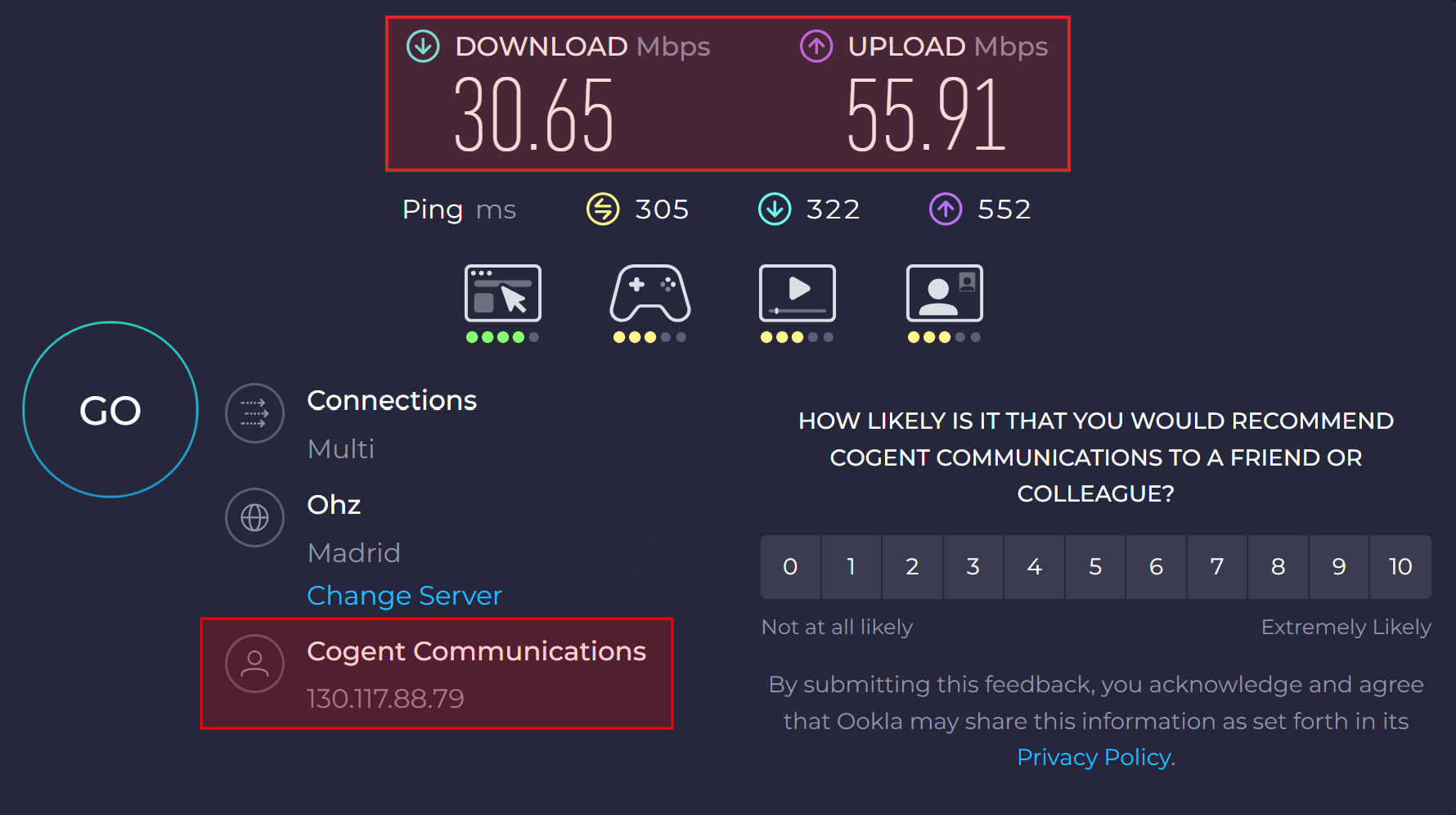
Upload a screenshot of the speedtest.net results.*
Go to speedtest.net, run a speed test, and upload a screenshot of the results (if speedtest.net didn't work, try fast.com).
Screen recording for Apps testing
Open a few apps and use the internet normally for 2-3 minutes (examples: YouTube, Maps, web browsing, delivery app, etc..).
Upload the screen recording video here.*
eSIM PERFORMANCE RATING
Rate the overall performance based on speed and stability while doing the previous task.*
1 = Very bad (unusable / frequent disconnects)
2 = Bad
3 = OK
4 = Good
5 = Very good (fast and stable)
HOTSPOT TEST
- 1- Enable hotspot on your phone.
- 2- Connect a second device (phone or laptop) to the hotspot.
- 3- On the connected device, open speedtest.net and do a speed test.
iOS: Settings → Personal Hotspot → turn Allow Others to Join ON.
Android: Settings → Connections → Mobile Hotspot and Tethering → turn Mobile Hotspot ON.
Upload a screenshot of the Speedtest results.*
If speedtest.net didn't work, try using fast.com
For example:
• Did the connection drop at any point?
• Any apps that felt slower than usual?
• Any buffering or lag during watching videos?
• Using hotspot, did it work? Was it slower than expected?